
Wallet setup guide
How to fill the wallet fields correctly.
The copied wallet is the trader you follow. The trading wallet fields belong to the Polymarket account that will place your copied trades.
Wallet to copy
Find the public wallet address of the trader you want to mirror.
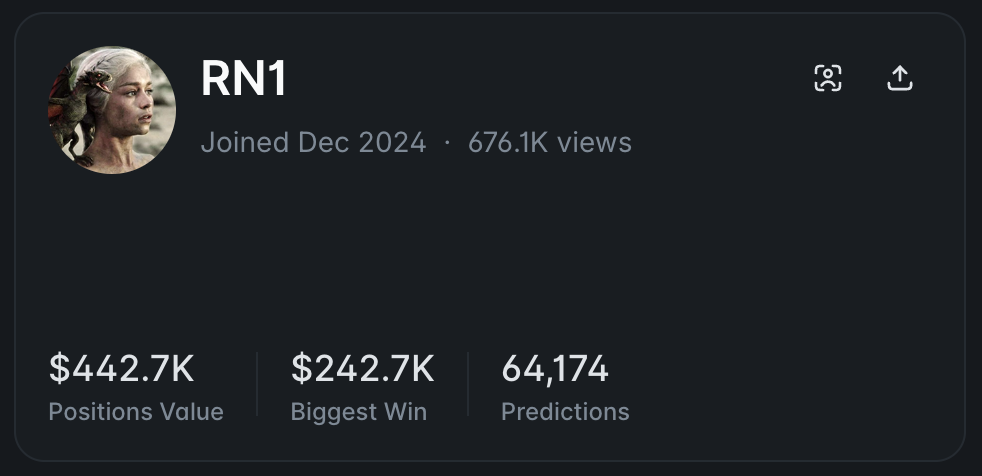
Steps
1. Open the trader's Polymarket portfolio page.
2. Find the human icon near the top of the portfolio.
3. Hover over that human icon until it shows Copy address, then click it.
4. Paste that copied public 0x... address into Wallet to copy.
Important notes
This is a public address. You are not entering a private key here.
The copied wallet is the trader you want to mirror, not your own trading wallet.
Trading wallet private key
Use the private key for the wallet that will place your copied trades.
Steps
1. Choose Email / Magic in the bot form if your Polymarket account uses email login. That is the recommended setup.
2. Magic is the wallet technology Polymarket uses for its email login flow.
3. Sign into reveal.magic.link/polymarket with the same email login details you use for that Polymarket account.
4. Reveal and copy the exported private key from that Magic page, then paste it into Trading wallet private key.
Important notes
Use a dedicated trading wallet. Funds remain in that wallet until trades settle through Polymarket contracts.
Why we need this? The bot needs your permission to place trades from your trading wallet when it copies a trader for you. In plain terms, this key is what lets the bot press the buy or sell button on your behalf.
We encrypt the key after you save it, and we cannot use it for anything other than authorizing trades from the bot.
Use a wallet you control. Do not paste the private key of the trader you are copying.
For MetaMask / wallet-login accounts, use Polymarket's own Settings - Account - Export PK flow for the dedicated trading account.
Wallet address
Enter the Polymarket wallet address that will fund orders.
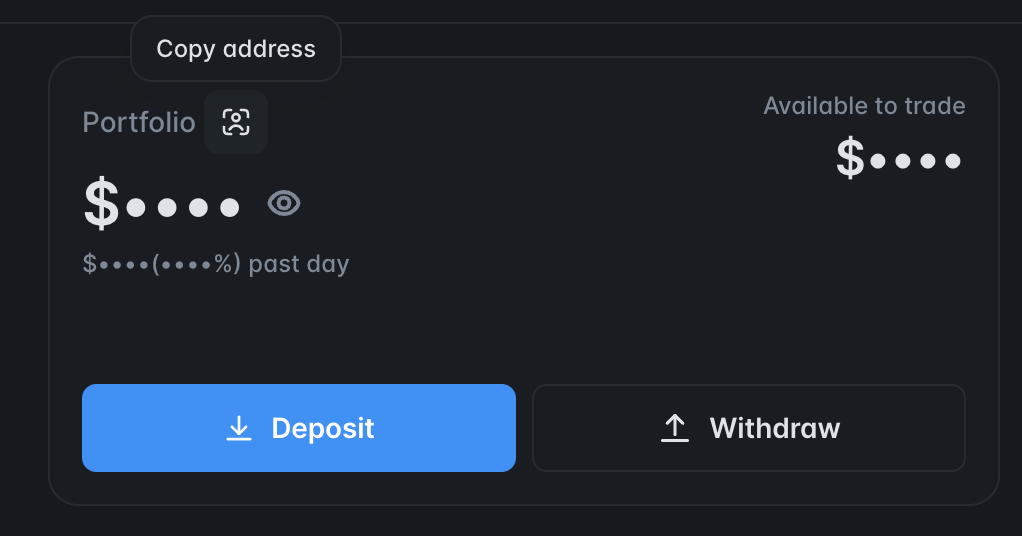
Steps
1. Open the same Polymarket account you used above when revealing the private key.
2. Open your Polymarket profile page and find the address shown left of the pencil icon.
3. If Polymarket shows a deposit wallet or proxy wallet, copy that funder address. This can be different from the exported private-key address.
4. Paste that 0x... address into Wallet address.
5. Before turning on the bot, place one small manual order from that same Polymarket account in the Polymarket UI. This completes Polymarket's deposit-wallet onboarding for API orders.
Important notes
For new deposit-wallet accounts, the private key is the owner or session signer, while Wallet address is the deposit wallet that holds funds and places orders.
For older proxy-style accounts, use the funded Polymarket wallet address shown by Polymarket.
If you skip the first manual UI trade on a new deposit-wallet account, Polymarket may reject API orders with signer mismatch errors even when the bot fields are otherwise correct.
Relayer signer address
Copy the signer address Polymarket shows for this account.
Steps
1. Open the same Polymarket account that owns the trading wallet.
2. Open Polymarket Settings and find the Signer address for this trading account.
3. If Polymarket has not created one for this dedicated trading account yet, create it from that settings page.
4. Copy the displayed Signer address into Relayer signer address.
Important notes
For type-3 deposit-wallet accounts, the signer address must be registered by Polymarket for that deposit wallet before API orders can pass signer checks.
Use the signer address from the same Polymarket account as the private key and wallet address. Mixing accounts can produce the same order signer address error.
If a fresh wallet-login account still fails, place one tiny manual order in Polymarket first so the deposit-wallet proxy is deployed on-chain.